Overview
Doc AI allows project access to intelligent document search powered by Retrieval-Augmented Generation (RAG) technology. Search and extract precise information from your File Management module documents, enabling quick access to relevant data when you need it.
IMPORTANT: Before using Doc AI, ensure you have some familiarity with the File Management module, as Doc AI relies on documents stored there.
Getting Started
Enable Doc AI
Doc AI is not enabled by default.
You can enable this module when:
- Creating a new project
- Modifying an existing project via Project Administration
In Project Administration, enable the module from the dropdown.
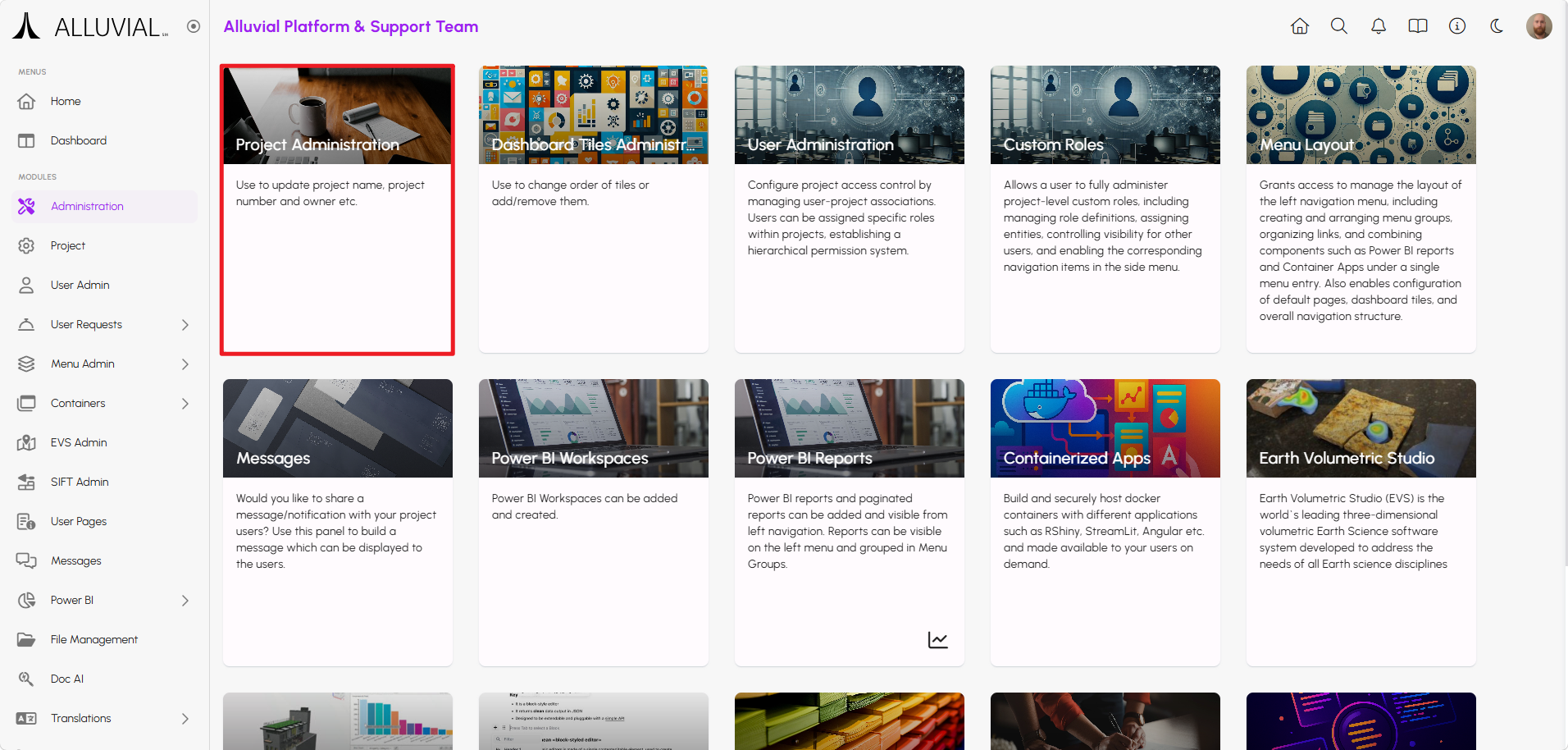
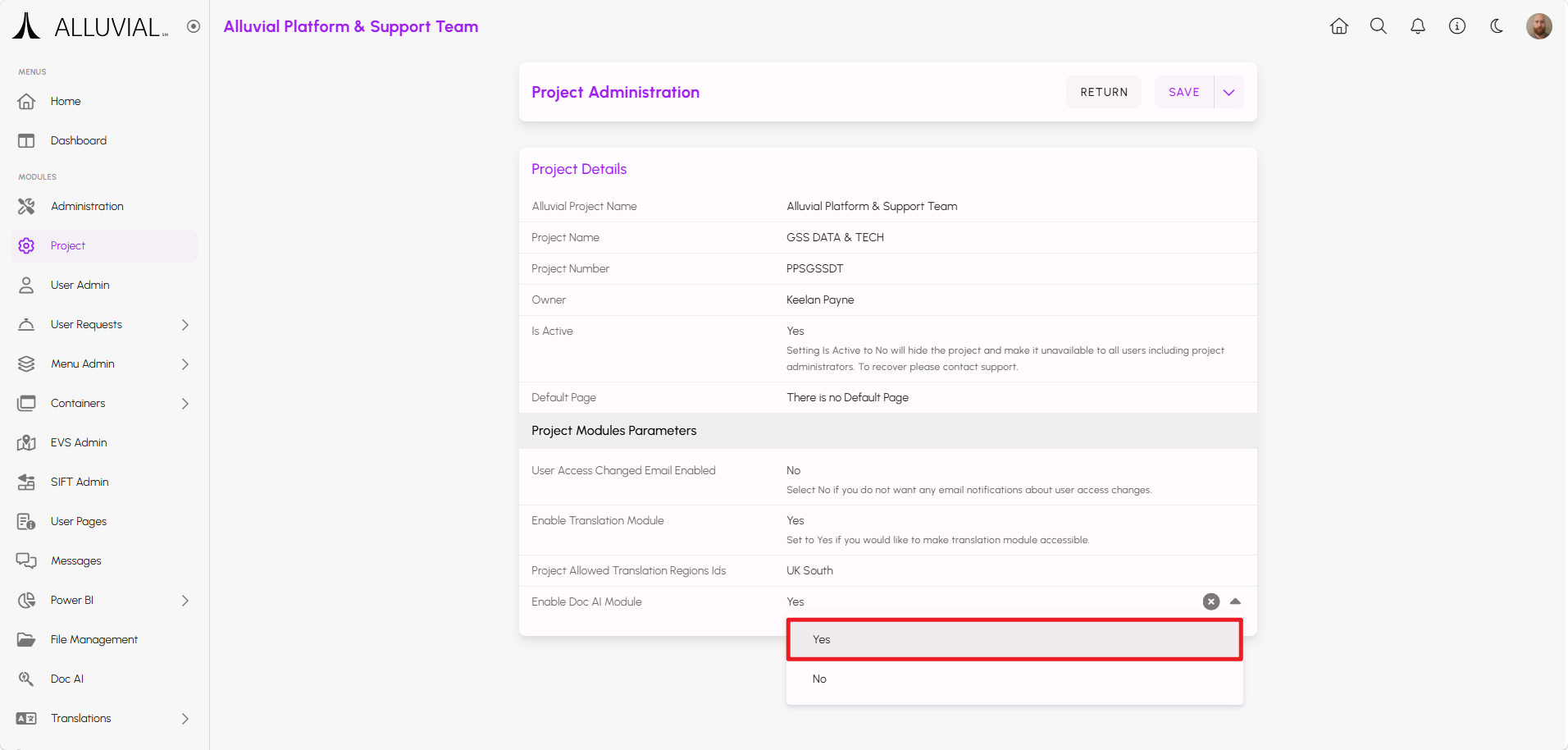
Once enabled, the Doc AI card appears in the Administration menu. Project administrators can then create Doc AI resources and connect them to File Management directories.
IMPORTANT: Make sure to give yourself and others the appropriate permissions to access Doc AI under User Administration, otherwise the Doc AI card will not show up.
Accessing Doc AI as an Administrator
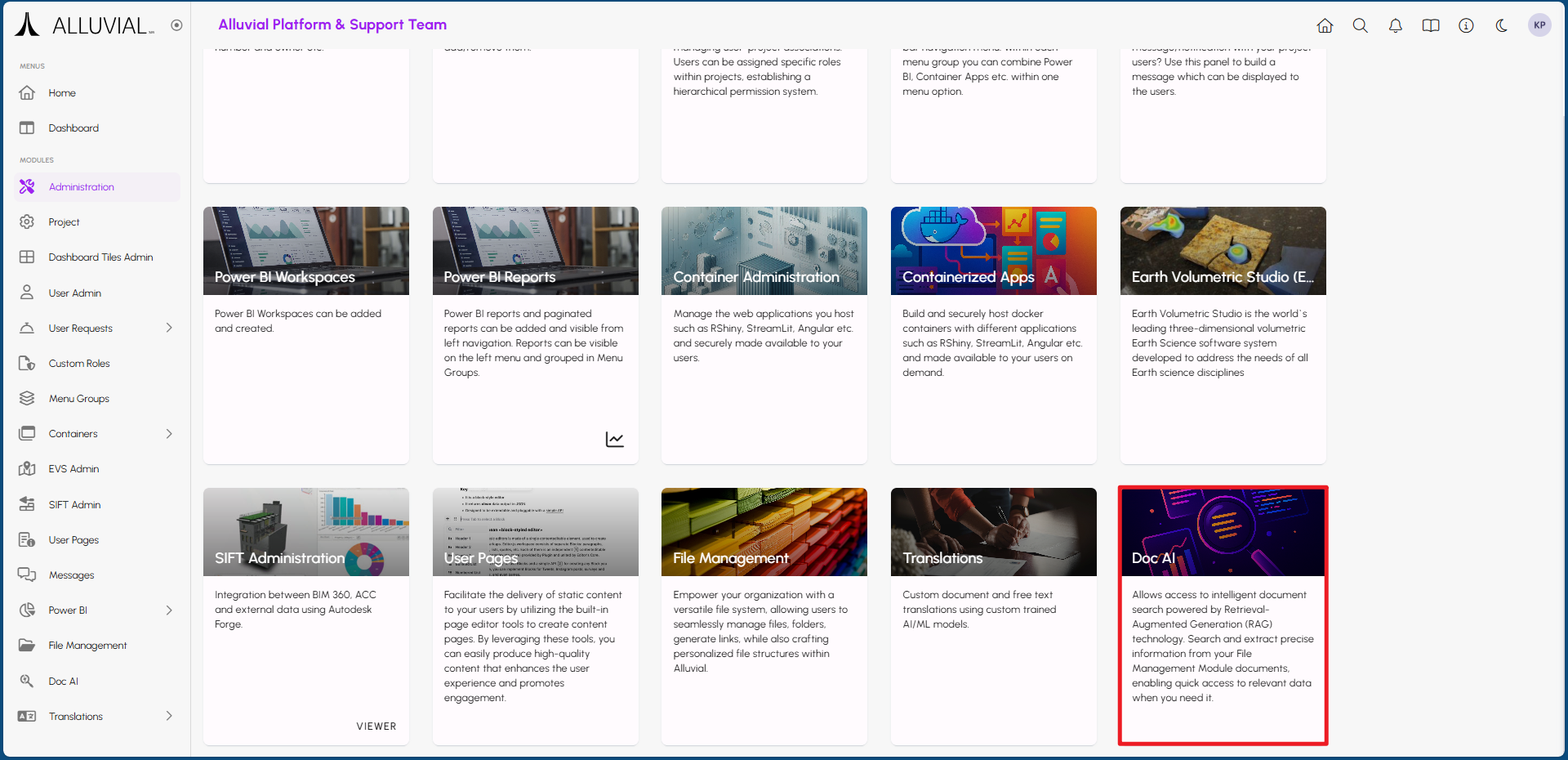
- Navigate to the administration page in your Alluvial project.
- Select Doc AI to open the project's Doc AI search page.
Core Concepts
Retrieval-Augmented Generation (RAG)
Retrieval-Augmented Generation (RAG) combines document retrieval with generative AI so responses can be grounded in your project content instead of relying only on a model's general knowledge.
In Doc AI, this means the system searches selected files from File Management, retrieves the most relevant content, and uses that content to generate a response.
Common Tasks
Creating a New Doc AI Resource
- Click CREATE NEW.
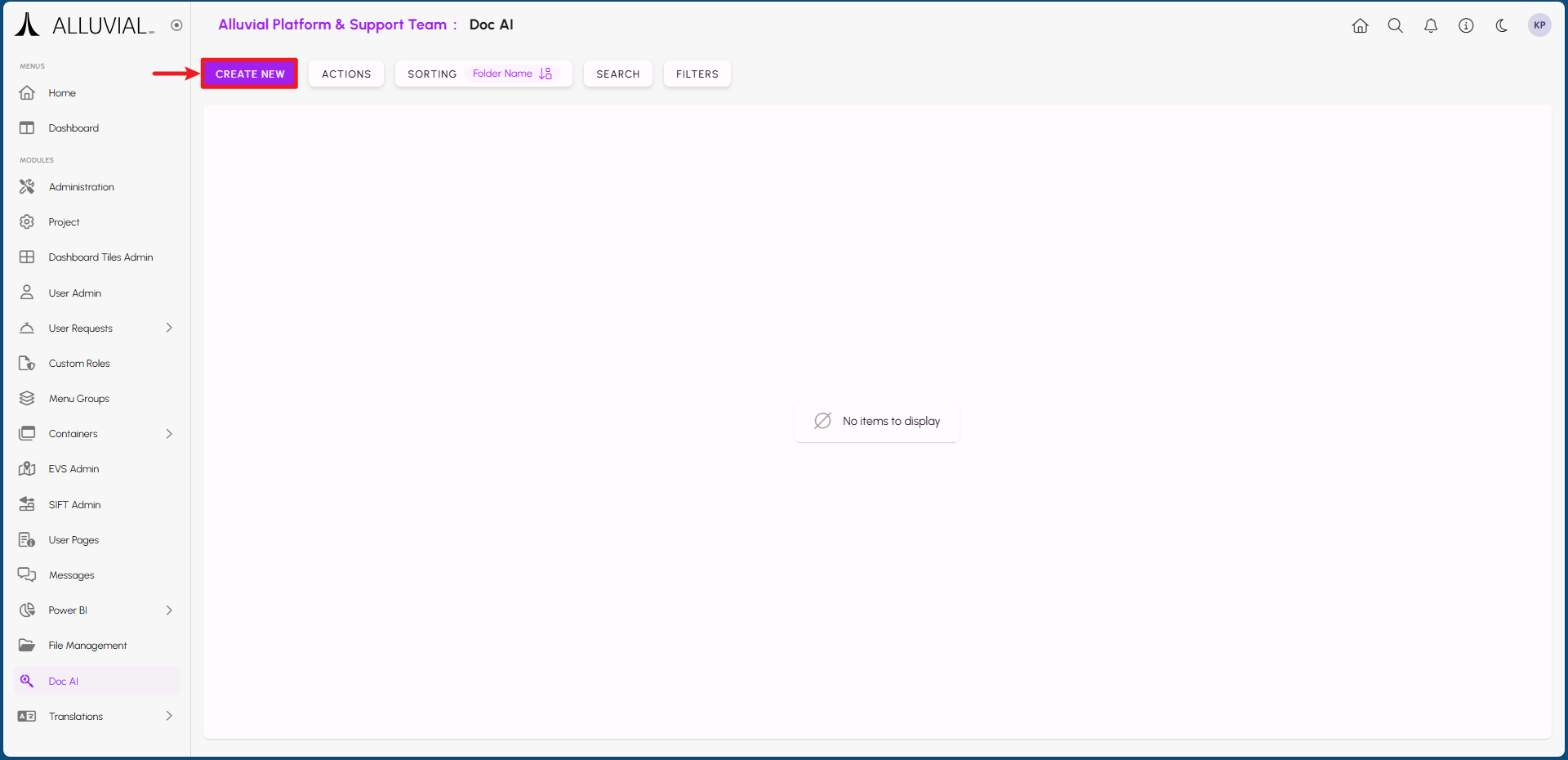
- Complete the form.
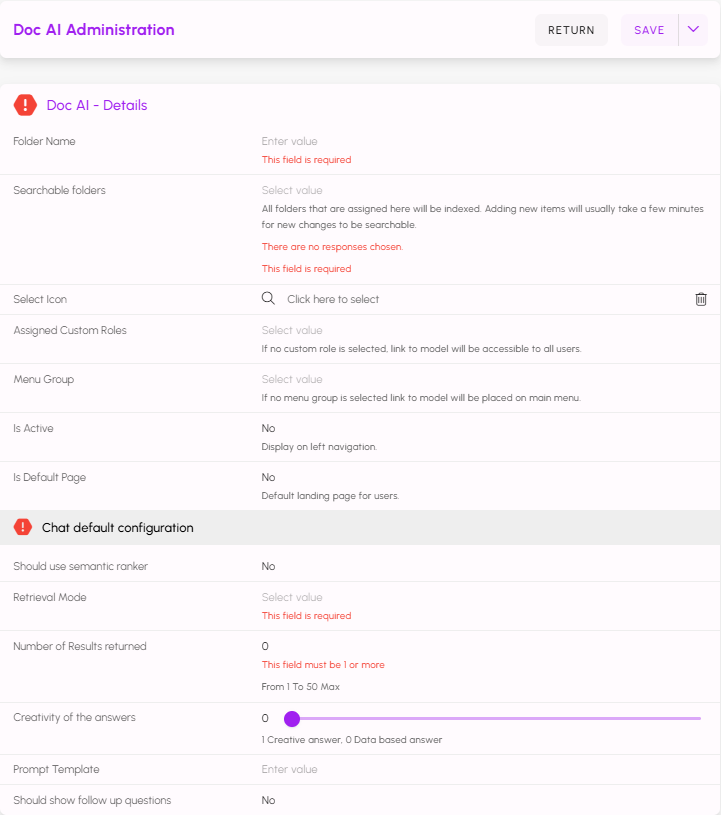
- Folder Name - This will be what the Doc AI resource will appear as to your project users.
- Searchable folders - This is where you would select the directories from File Management that you uploaded your files to. Note that you cannot select nested directories, but multiple directories can be selected.
- Select Icon - Allows you to choose an icon that will appear next to the Folder Name you entered in the first field.
- Assigned Custom Roles - Select any applicable Custom Roles.
- Menu Group - Select an applicable Menu Group to put the resource in.
- Is Active - If set to yes, project users will be able to view the resource.
- Is Default Page - If set to yes, your project users will immediately be directed to the resource when navigating to the project.
- Should Use Semantic Ranker - Enable semantic ranking - this is a mechanism that improves the relevance of search results by using deep learning models to better understand the meaning of queries and documents, rather than relying solely on keyword matching.
- Retrieval Mode - There are three options, each with pros and cons.
- Text - Finds results that contain the exact words you typed, like looking for a specific word.
- Vector - Finds results that mean the same thing as your question, even if they use different words.
- Hybrid - Combines both word matching and meaning matching to give you the most accurate results.
- Number of Results Returned - Returns multiple results when a query is performed.
- Creativity of the Answers - Controls the randomness of the responses. Lower values make the answers more predictable, while higher values make them more varied and surprising.
- Prompt Template - You can provide additional instructions here that the AI can use to determine how you want it to respond.
- Should Show Follow Up Questions - Enabling this will auto-generate follow up questions that can be asked based on the last question.
Once the form is completed, make sure to save it. If done correctly, you should see your new Doc AI resource on the applicable search page.
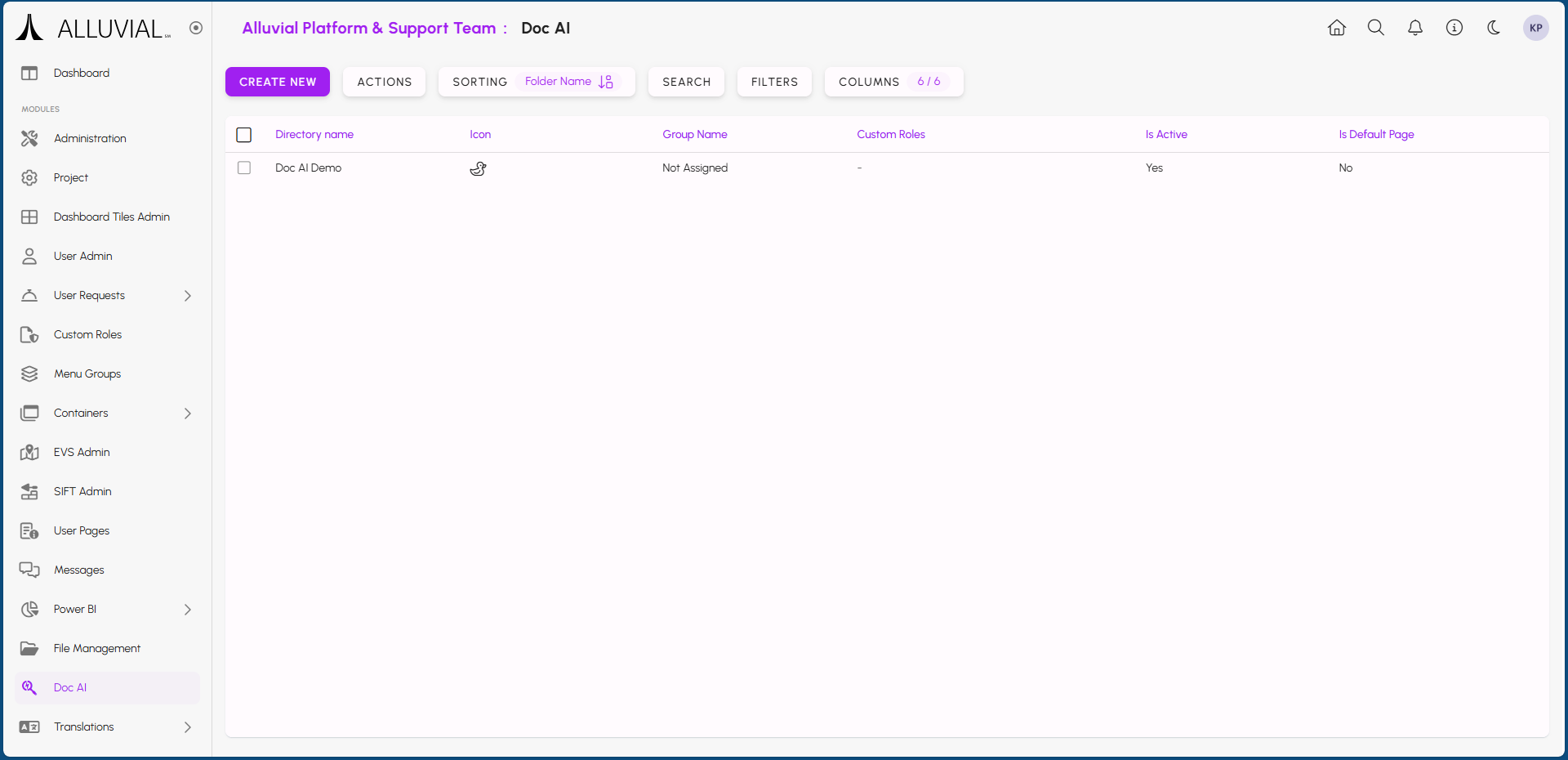
IMPORTANT: The files in the selected File Management directories will be indexed, which may take some time depending on the number and size of the documents.
Using Doc AI
Accessing Doc AI as a Project User
Once your Doc AI resource is set up and indexed, project users can start using it to search through the documents in the selected File Management directories. Users can find the resource within the project menu under the name you provided during setup, or within the designated menu group if one was selected.
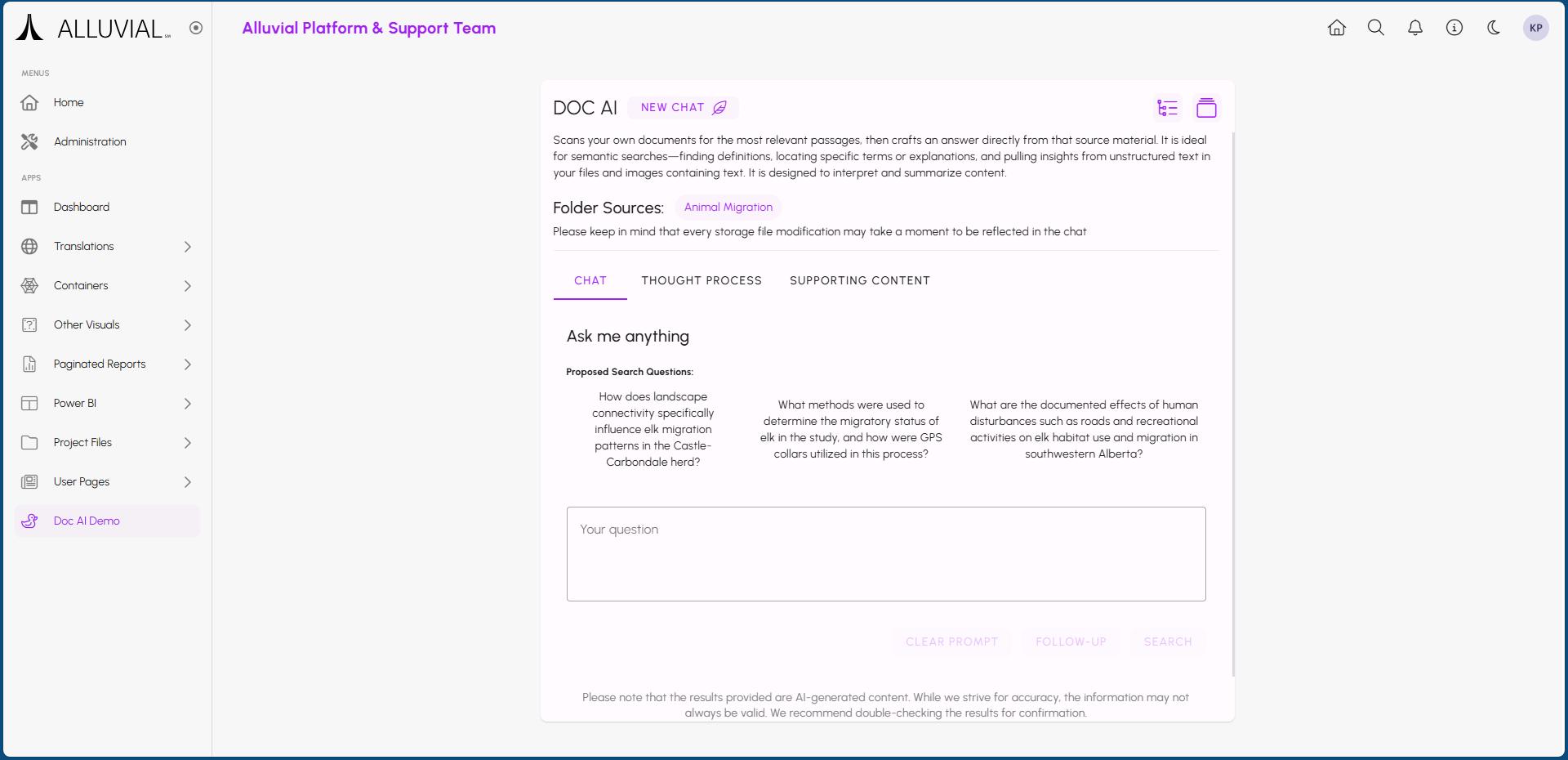
Users can enter their queries into the text input field, and Doc AI will return relevant information extracted from the documents. The results will be ranked based on the retrieval mode you selected during setup (Text, Vector, or Hybrid).
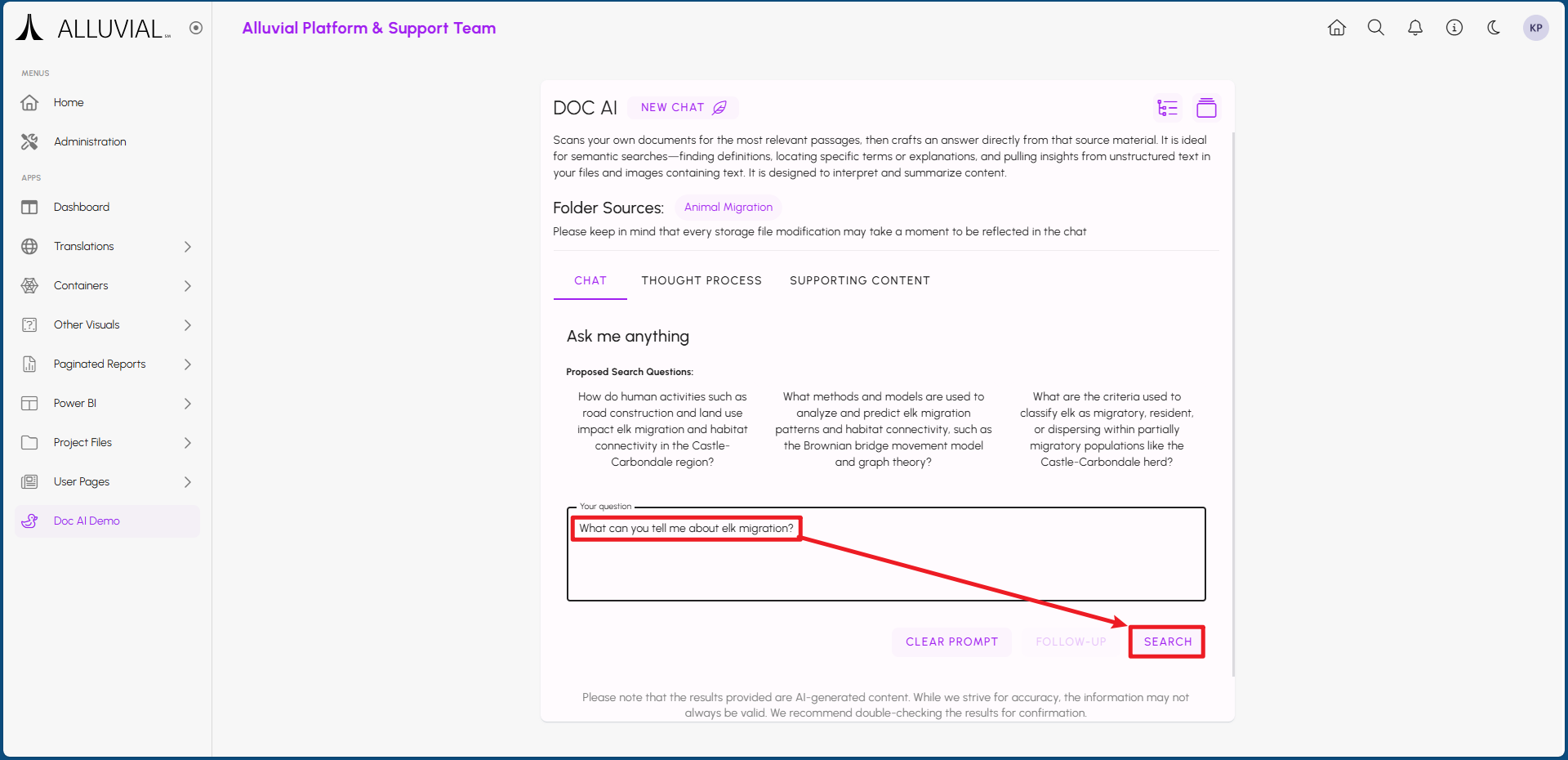
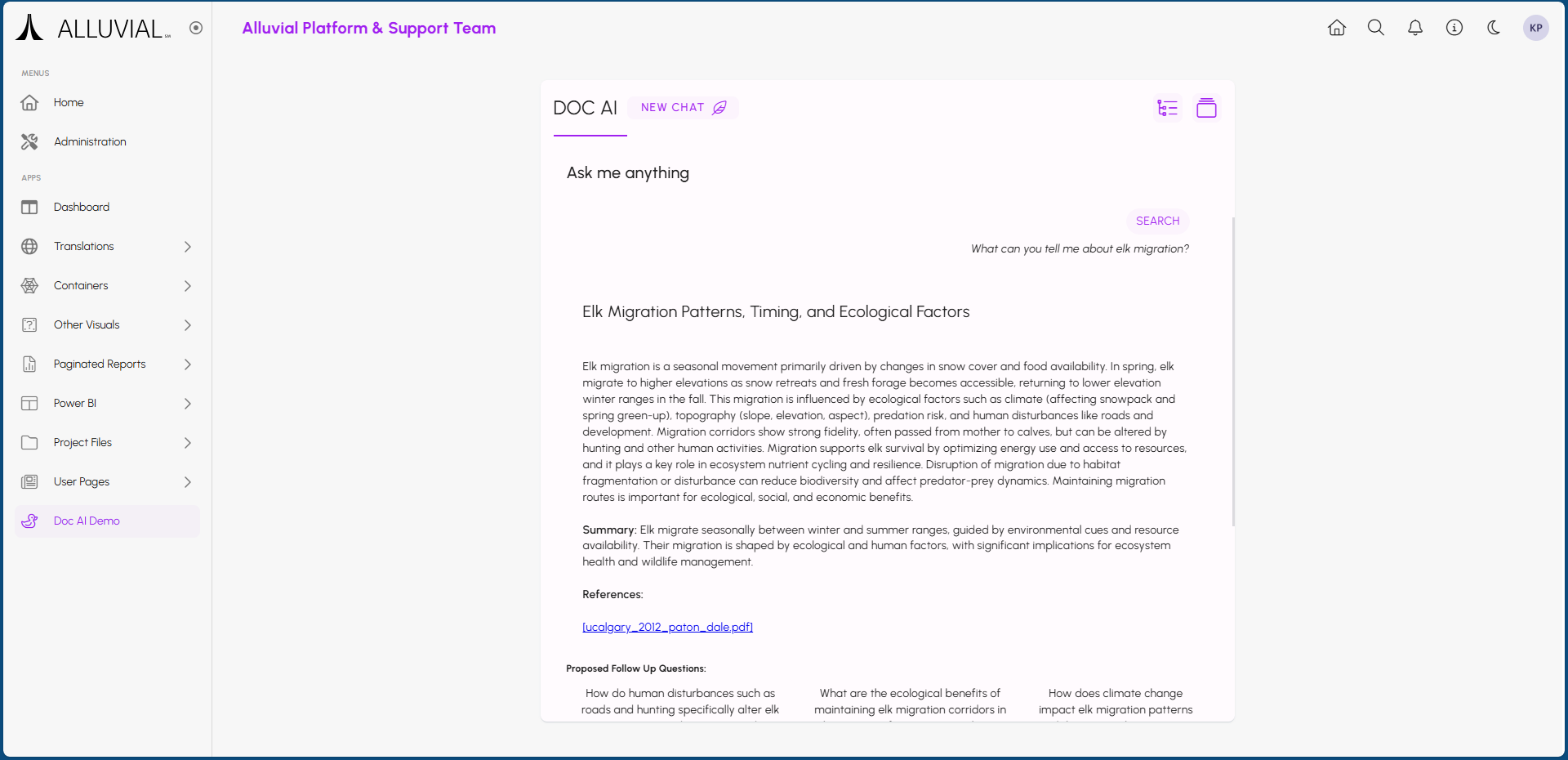
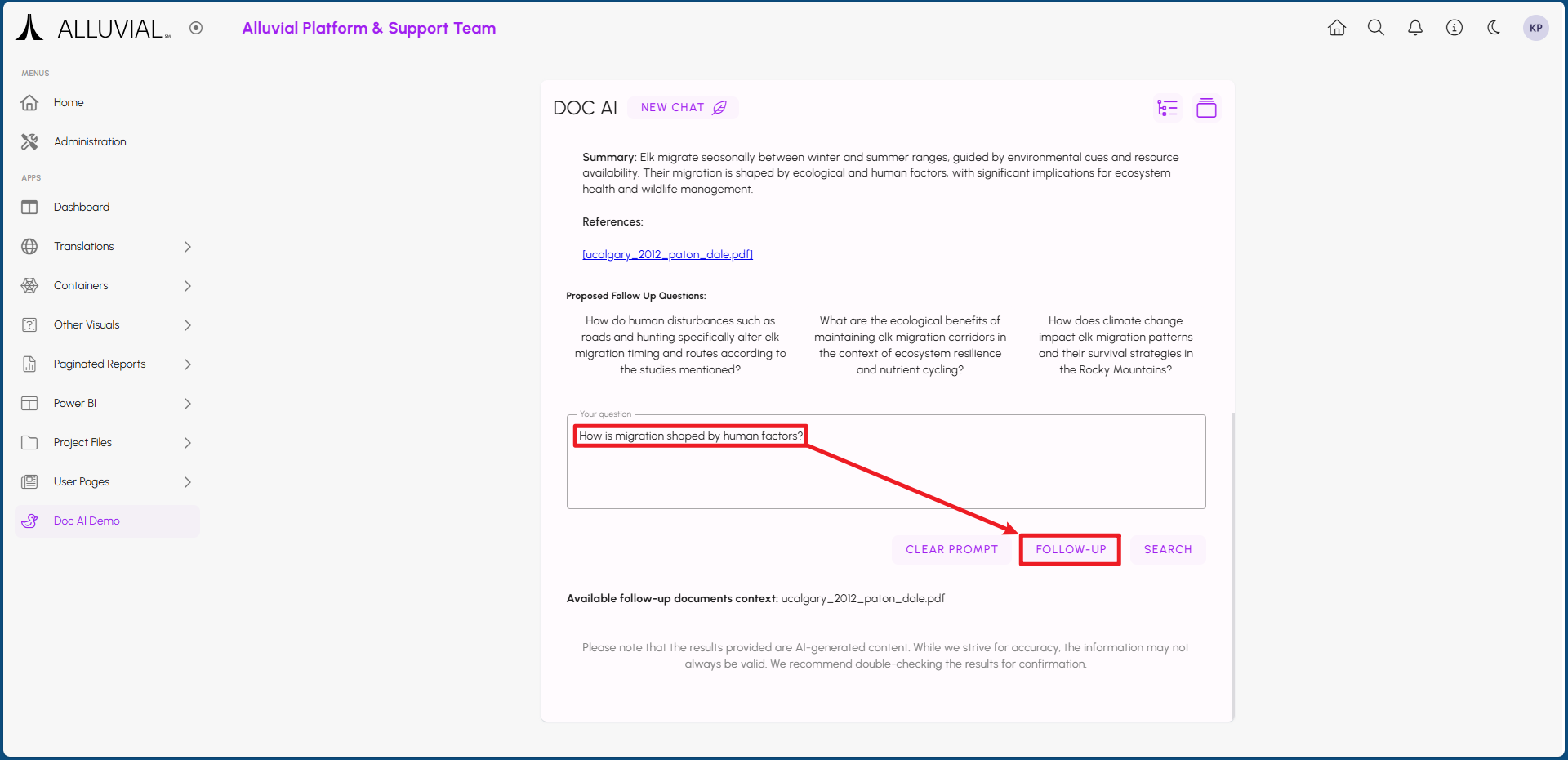
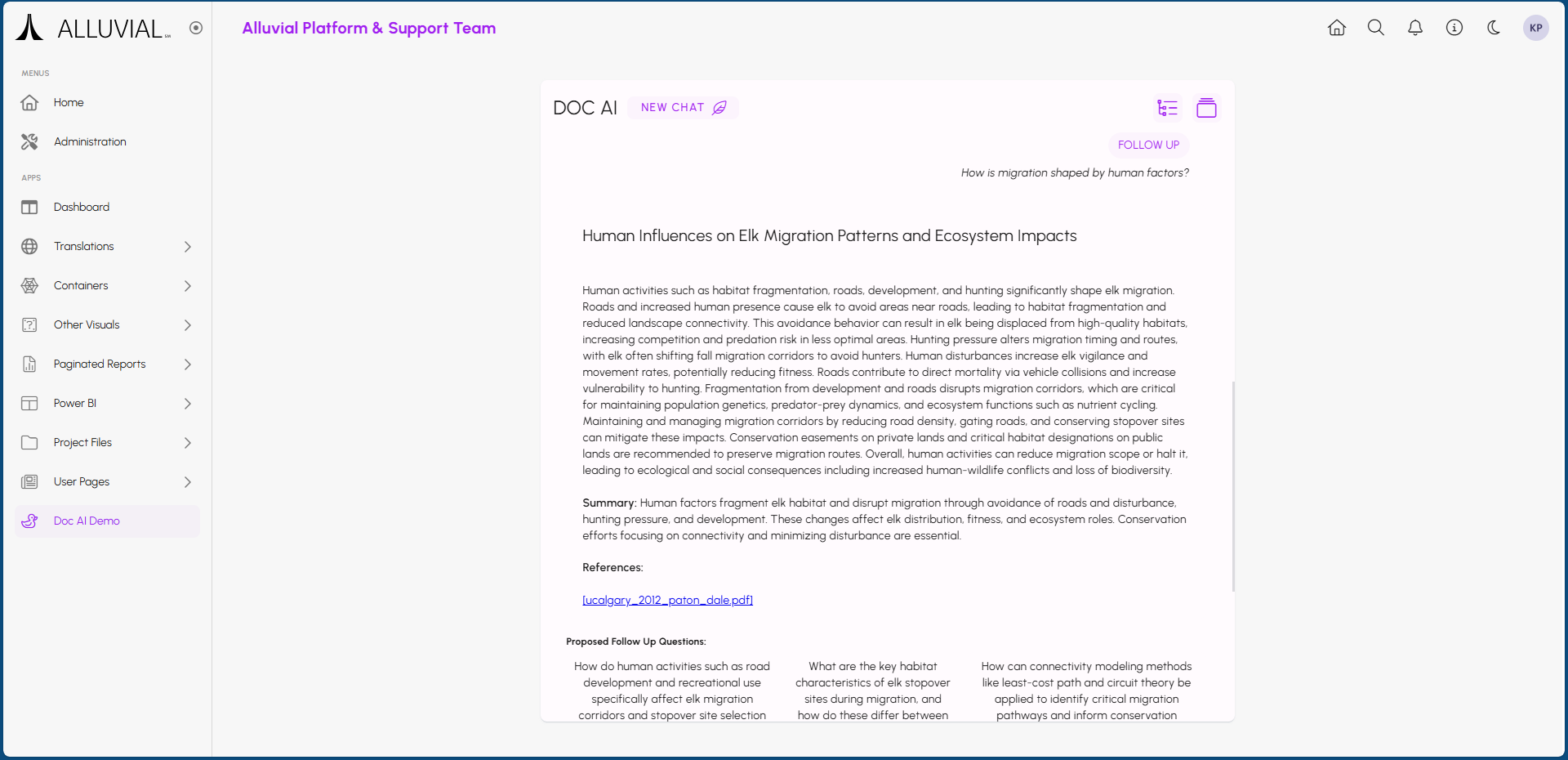
Users can also follow up on previous queries. This allows for a more interactive and dynamic search experience.
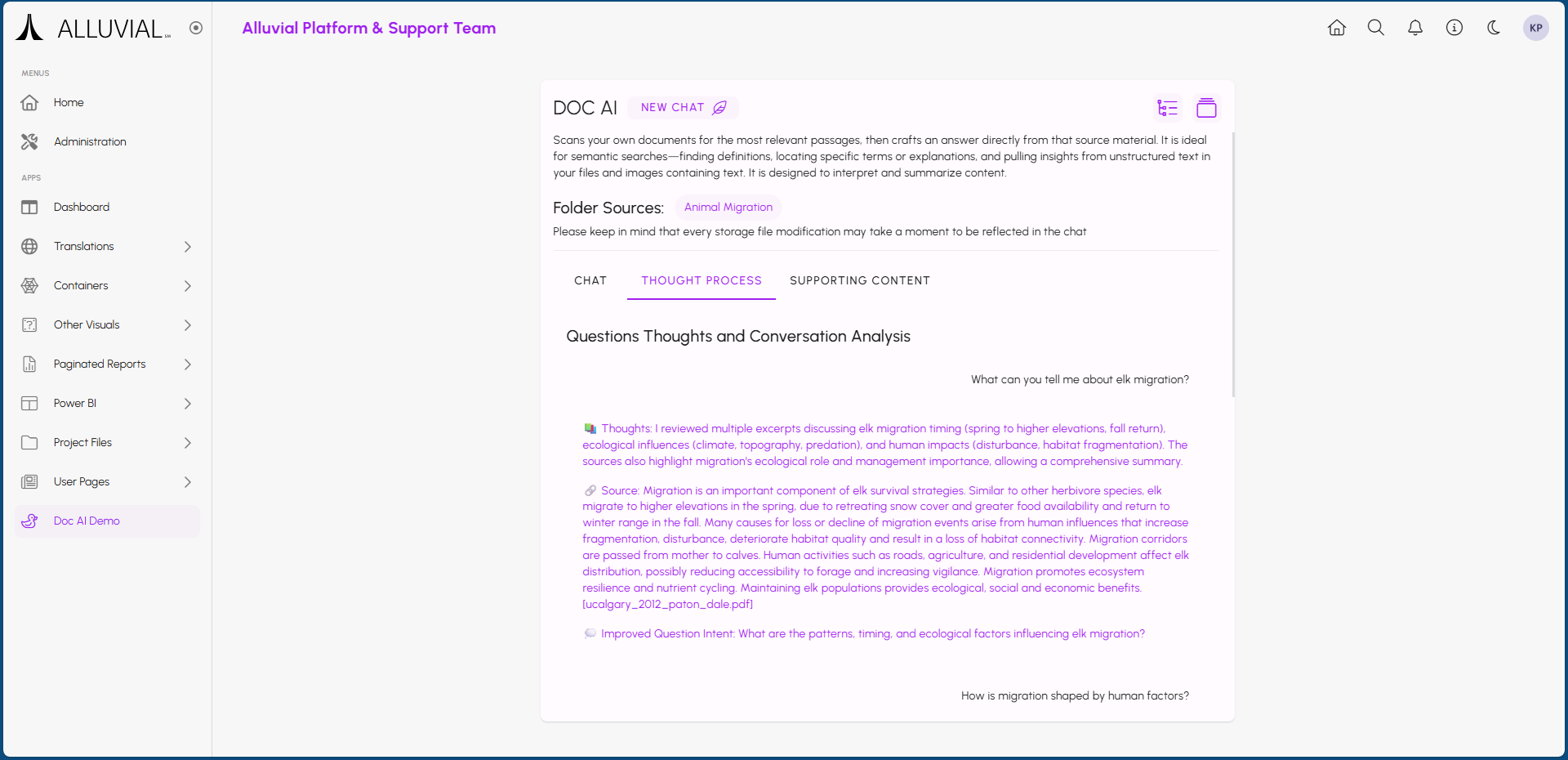
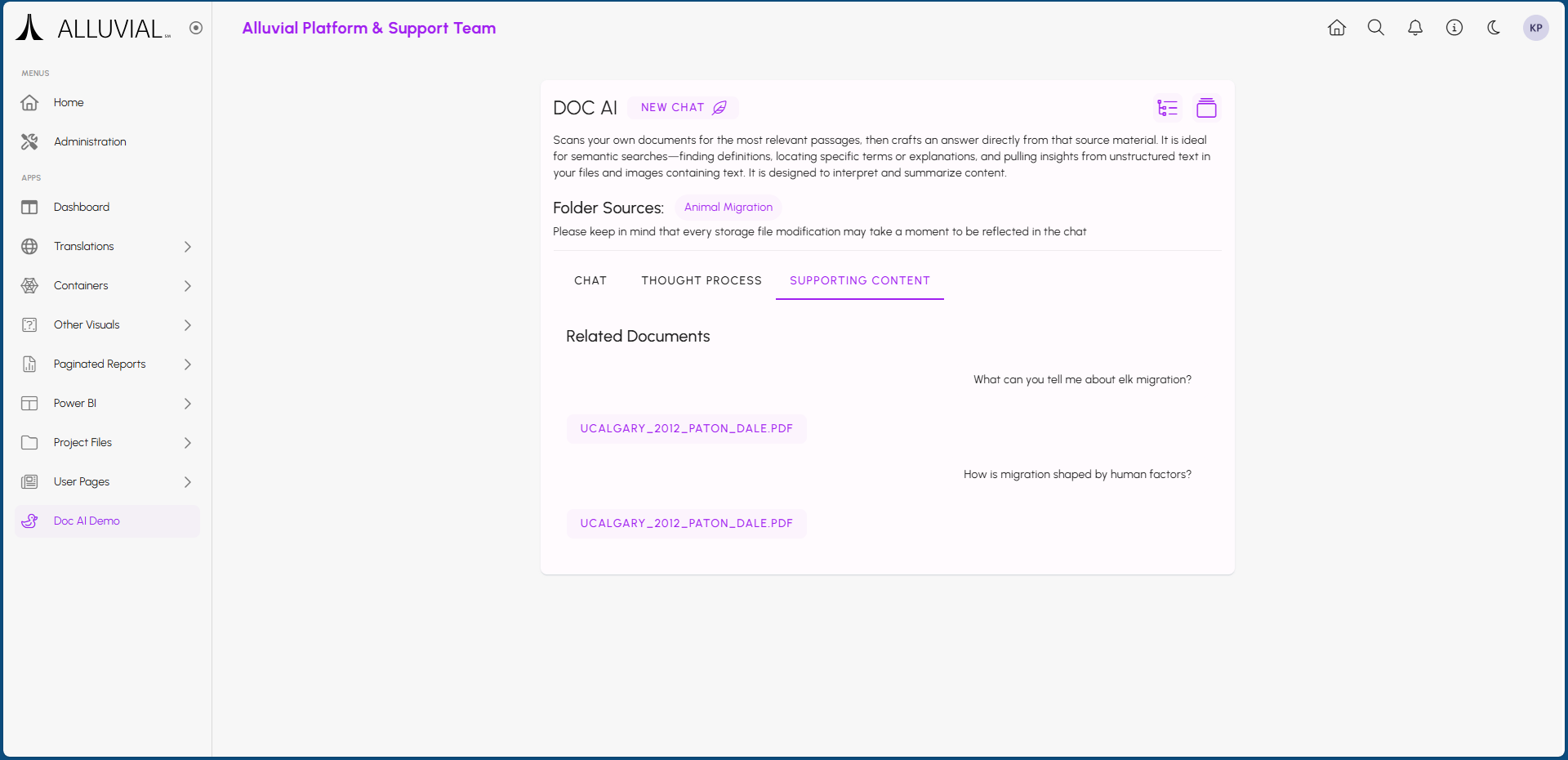
By clicking on the THOUGHT PROCESS or SUPPORTING CONTENT tabs, users can gain insights into how the AI arrived at its answers and view the specific document excerpts that were used to generate the response.
Additional Functionality
Conversation History
All previous interactions with the Doc AI resource are saved in the conversation history. At any time, users can revisit past queries and responses. History is kept private to each user, ensuring that individual search sessions remain confidential.
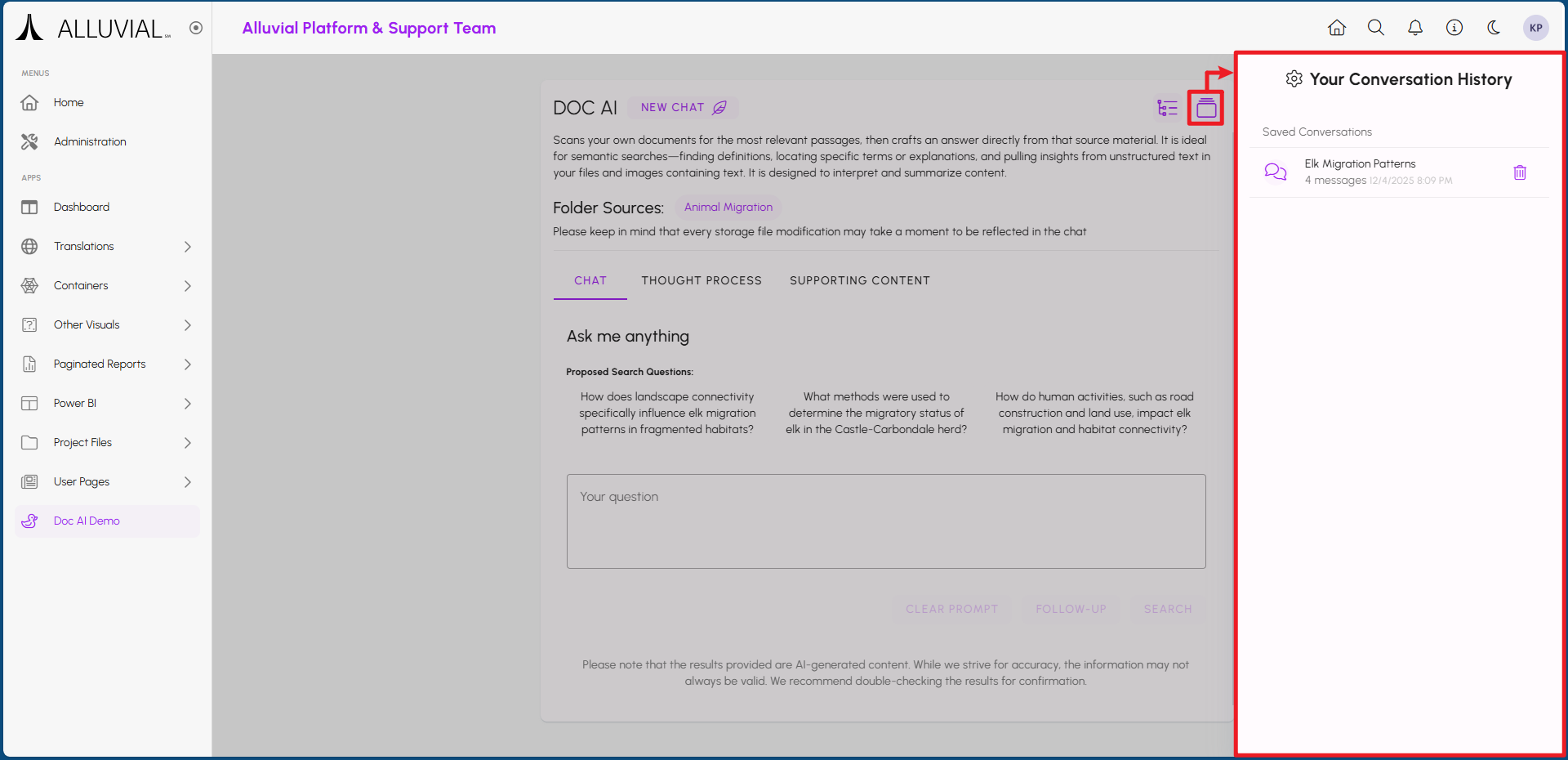
Saved conversations can be deleted by clicking the trash can icon next to each entry.
Overriding Settings
At any time, users can temporarily override certain settings for their current session. These changes will not affect the default configuration set by the administrator.
To access these options, click the settings icon in the top right corner of the Doc AI resource page.
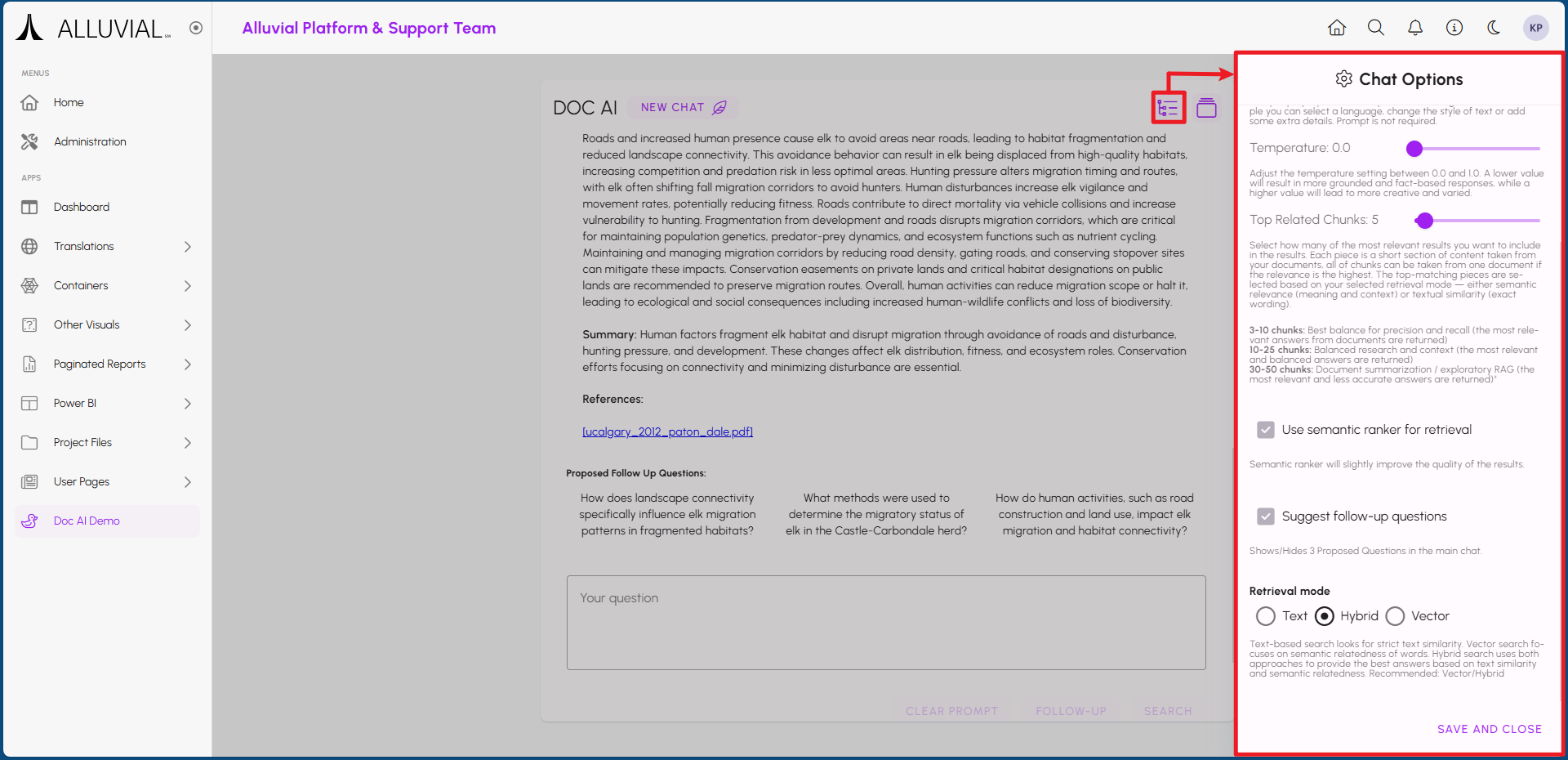
Be sure to click SAVE AND CLOSE to apply the changes for the current session.